Installing Thunderflow
This guide provides multiple methods for installing Thunderflow in your VS Code environment.
Manual Installation from VSIX
If you prefer to download and install the VSIX file directly:
-
Download the VSIX file:
- Visit the Official Thunderflow Website
- Download the latest
.vsixfile from the releases section
-
Install in VS Code using the Extensions View:
- Open VS Code
- Navigate to the Extensions view
- Click the "..." menu (More Actions) in the Extensions view
- Select "Install from VSIX..."
- Browse to your downloaded
.vsixfile and select it
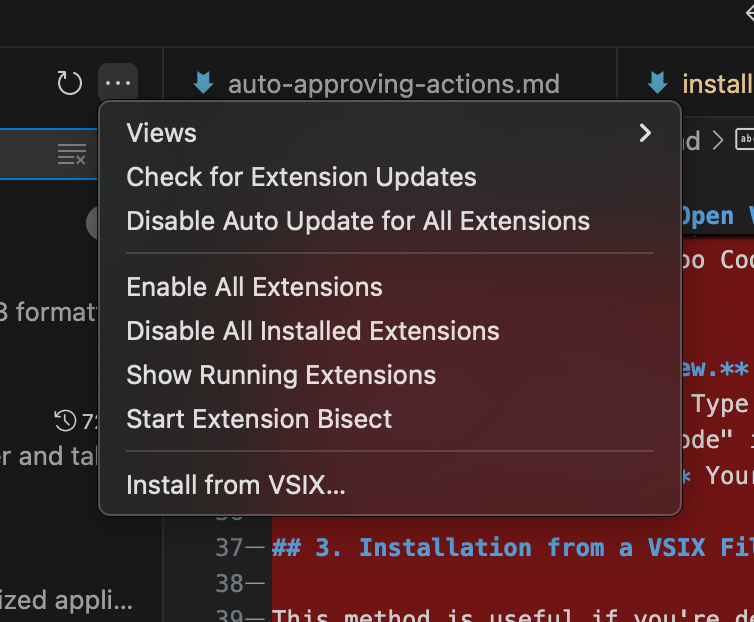
Installing Thunderflow using VS Code's "Install from VSIX" dialog
-
Install using Keyboard Shortcut:
- Open VS Code
- Press
Ctrl+Shift+P(Windows/Linux) orCmd+Shift+P(macOS) to open the Command Palette - Type "Install Extension as VSIX" and select it when it appears
- Navigate to the downloaded
.vsixfile location - Select the file and press Enter
Troubleshooting Installation
Extension Not Visible
- Restart VS Code completely
- Verify Thunderflow is listed and enabled in the Extensions panel
- Try disabling and re-enabling the extension
- Check the Output panel for error messages (View → Output, select "Thunderflow" from the dropdown)
Installation Problems
- Ensure you have a stable internet connection
- Verify you're using VS Code version 1.84.0 or later
- If the VS Code Marketplace is inaccessible in your region, try the Open VSX Registry method
Getting Support
If you encounter installation issues not covered in this guide, please contact our support team at support@thunderflow.ai