Connecting Your First AI Provider
Overview
Thunderflow requires an API key from an AI model provider to access powerful language models that drive its capabilities. This guide will help you:
- Choose the right AI provider for your needs
- Obtain an API key
- Configure Thunderflow with your new API key
We strongly recommend using Claude 3.7 Sonnet for the best experience with Thunderflow. This model has been extensively optimized for Thunderflow's capabilities and provides excellent instruction-following behavior.
Choosing Your AI Provider
You have two main options for accessing AI models:
Model Aggregation Services
These services provide unified access to multiple AI models through a centralized API, offering streamlined integration and simplified billing.
Key advantages:
- Consolidated access to multiple model providers
- Simplified API key management
- Unified billing and usage tracking
- Flexible model selection without multiple accounts
Available services:
- OpenRouter (Recommended for most users)
- Requesty
Primary Model Providers
These services offer direct access to proprietary models, providing complete feature sets, enterprise-grade reliability, and dedicated support options.
Key advantages:
- Full access to provider-specific features
- Enterprise-level SLAs and support
- Advanced configuration options
- Early access to new model capabilities
Available services:
- Anthropic (Provider of Claude model family)
- OpenAI (Provider of GPT model family)
Provider Comparison
| Provider | Ease of Setup | Model Selection | Pricing | Best For |
|---|---|---|---|---|
| OpenRouter | ⭐⭐⭐⭐⭐ | Multiple providers | View pricing | Getting started quickly |
| Requesty | ⭐⭐⭐⭐ | Multiple providers | Varies by model | Flexible model access |
| Anthropic | ⭐⭐⭐ | Claude models only | View pricing | Direct Claude access |
| OpenAI | ⭐⭐⭐ | GPT models only | Varies by model | GPT model access |
Getting Your API Key
OpenRouter (Recommended)
Setup Process:
-
Create an account Visit openrouter.ai and sign in with your Google or GitHub account
-
Generate an API key Navigate to the API keys page and click "Create key"
-
Copy your key Name your key (e.g., "Thunderflow") and copy it for use in the next section
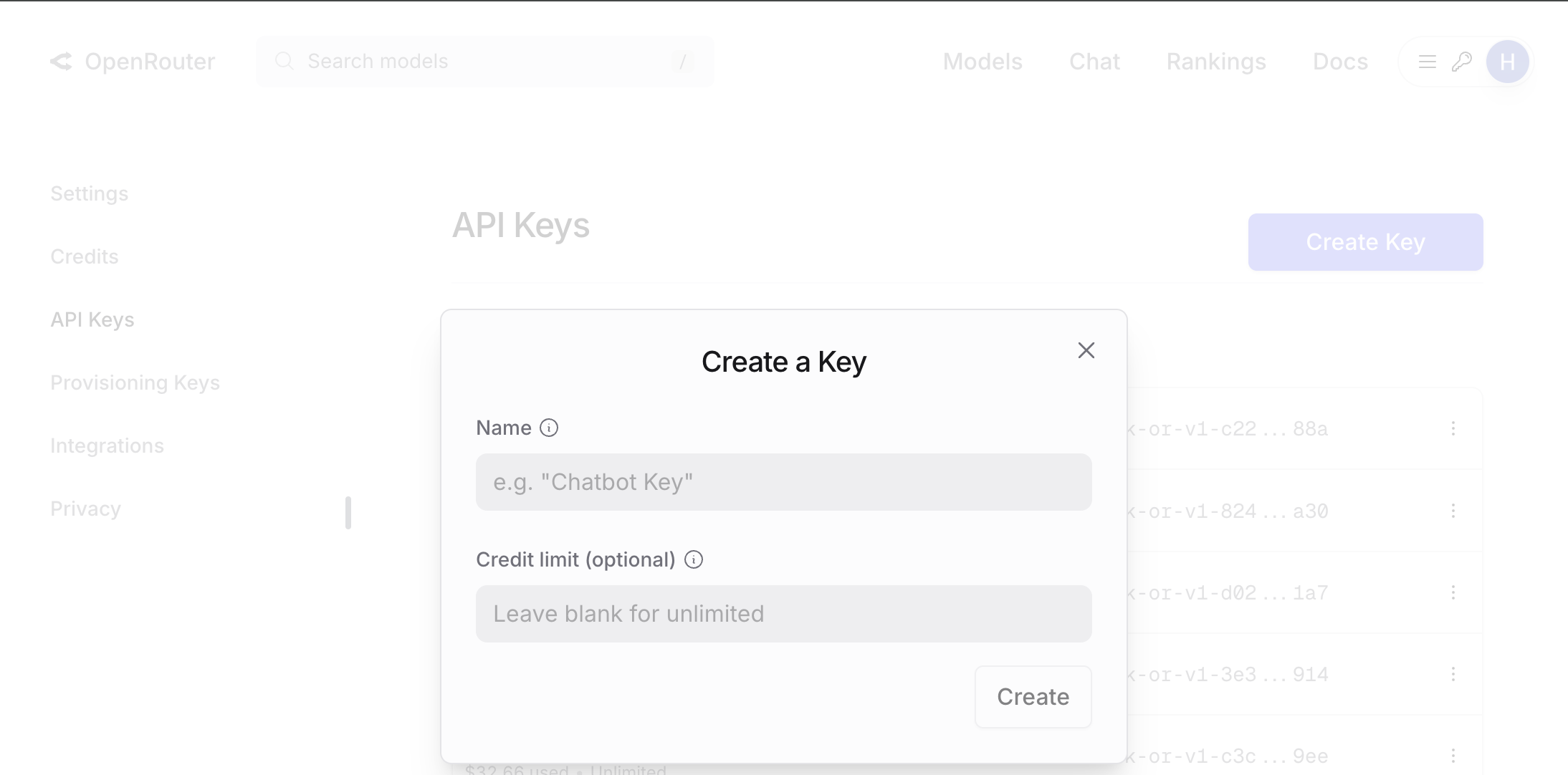 OpenRouter dashboard with "Create key" button
Requesty
Setup Process:
-
Create an account Visit requesty.ai and sign in with your Google account or email
-
Generate an API key Navigate to the API management page and click "Create API Key"
-
Copy your key immediately Important: Copy your API key right away as it will only be displayed once
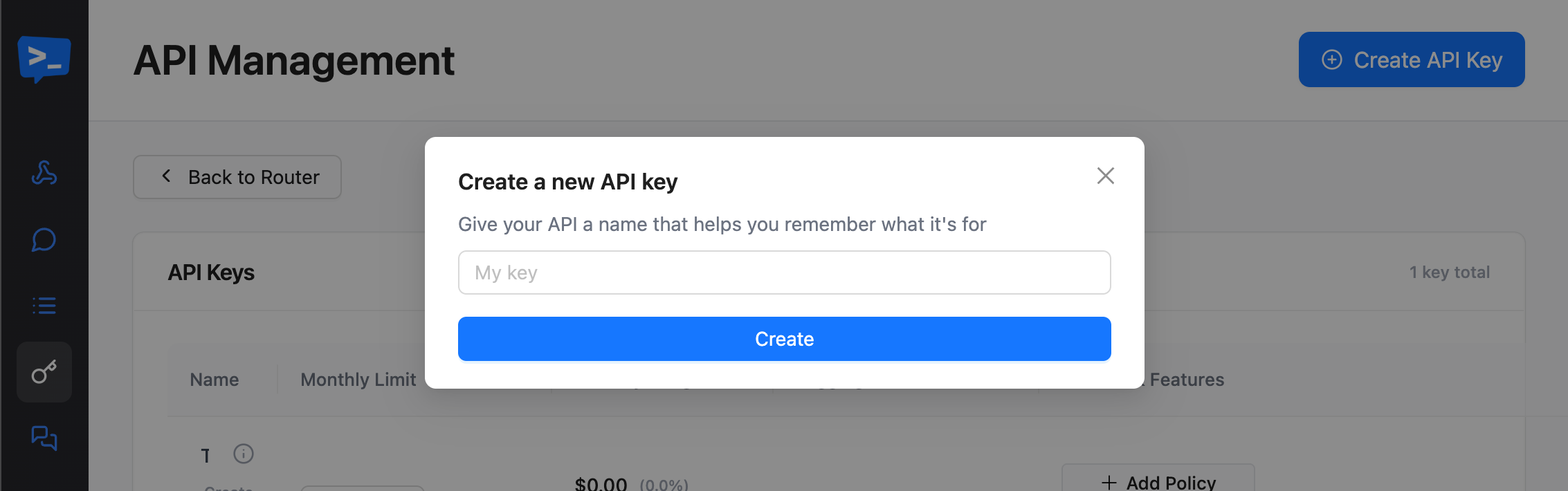 Requesty API management page with "Create API Key" button
Anthropic (Direct Provider)
Setup Process:
-
Create an account Visit console.anthropic.com and sign up for an account
-
Generate an API key Navigate to the API keys section and click "Create key"
-
Copy your key immediately Important: Copy your API key right away as it will only be displayed once Note: Anthropic may have rate limits depending on your tier
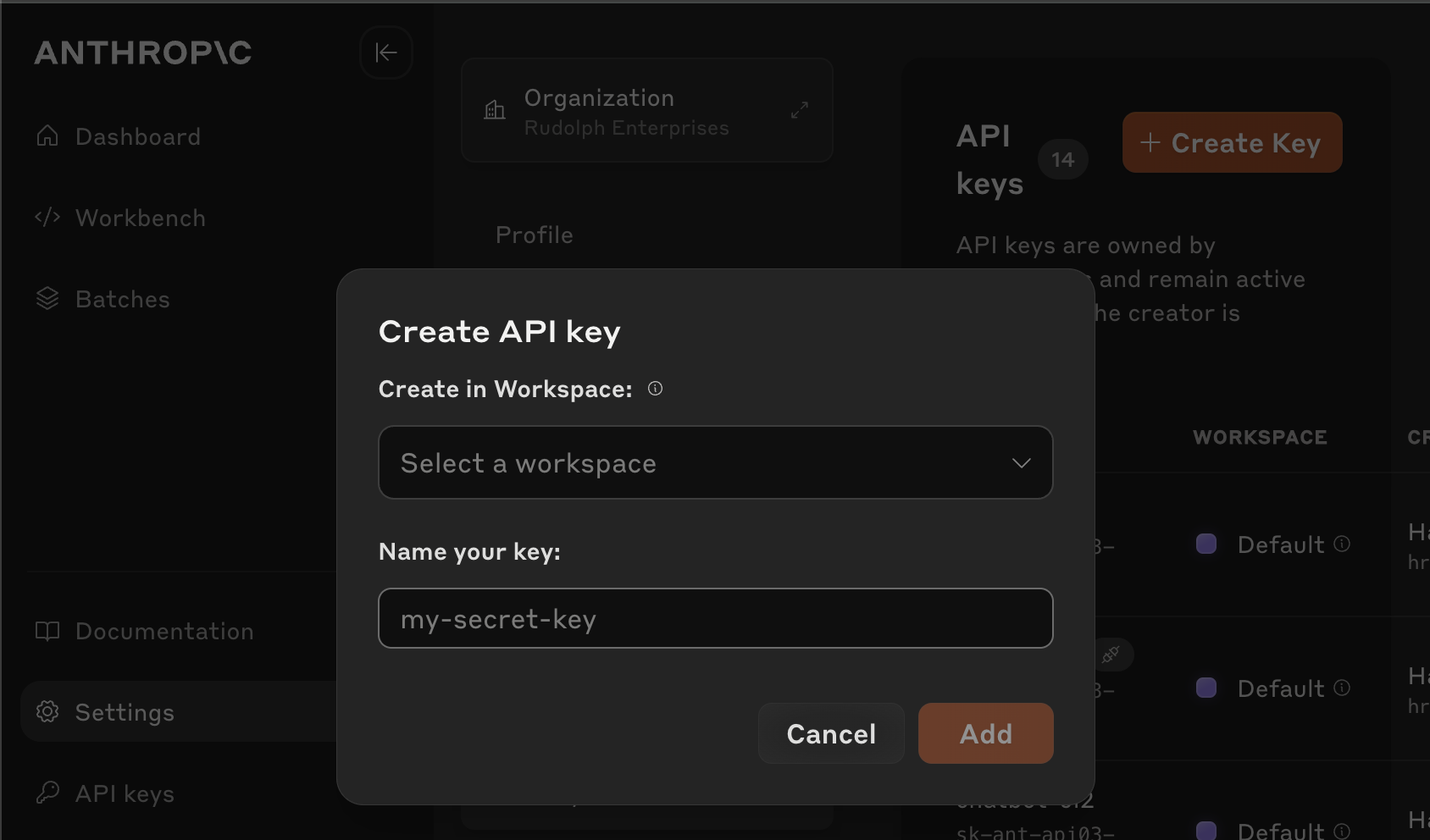 Anthropic console API Keys section with "Create key" button
OpenAI (Direct Provider)
Setup Process:
-
Create an account Visit platform.openai.com and sign up for an account
-
Generate an API key Navigate to the API keys section and click "Create new secret key"
-
Copy your key immediately Important: Copy your API key right away as it will only be displayed once
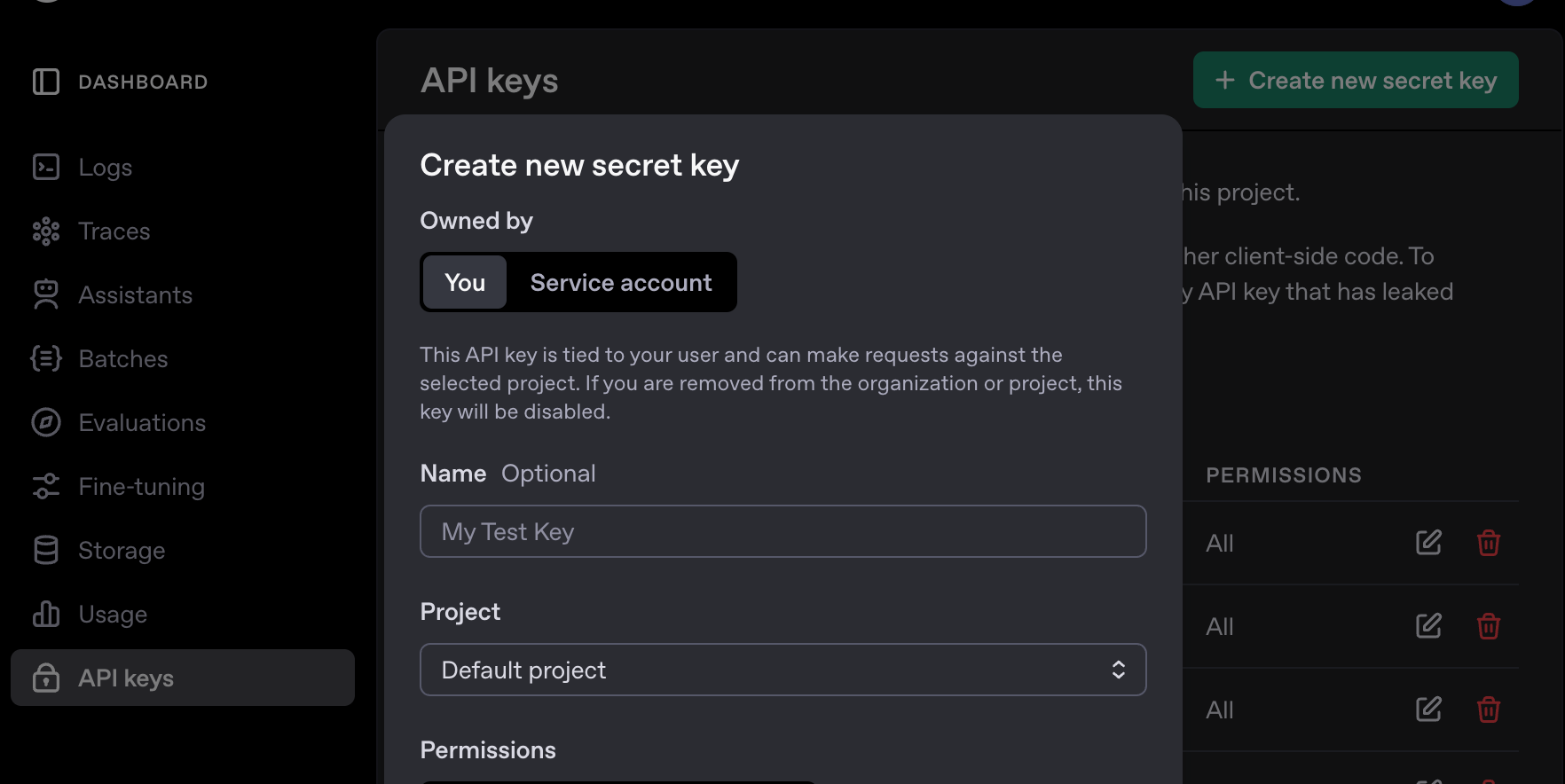 OpenAI platform with "Create new secret key" button
Configuring Thunderflow
Now that you have your API key, let's configure Thunderflow:
Configuration Steps
Follow these steps to set up Thunderflow with your new API key:
-
Open Thunderflow Open the Thunderflow sidebar by clicking the Thunderflow icon () in the VS Code Activity Bar
-
Select Provider In the welcome screen, select your API provider from the dropdown menu
-
Enter API Key Paste your API key into the appropriate field
-
Choose Model Select the recommended model:
- For OpenRouter: select
anthropic/claude-3.7-sonnet(model details) - For Anthropic: select
claude-3-7-sonnet-20250219(model details)
- For OpenRouter: select
-
Complete Setup Click "Let's go!" to save your settings and start using Thunderflow
Troubleshooting
Common Issues and Solutions
API Key Not Working
- Verify you've copied the entire key without any extra spaces
- Check if your account has been properly activated
- Ensure you have sufficient credits or billing set up with your provider
Rate Limit Errors
- Some providers have usage limits, especially on free or trial tiers
- Consider upgrading your plan or switching to a provider with higher limits
- For Anthropic, check your rate limit tier
Model Not Available
- Ensure you've selected a model that's available with your chosen provider
- Some models may require specific access permissions or higher tier accounts
Next Steps
Now that you've connected your AI provider, you're ready to start using Thunderflow! Here are some suggestions for what to do next:
- Complete your first task with Thunderflow
- Learn about using different modes for specific tasks
- Explore how tools work in Thunderflow
- Customize Thunderflow with custom instructions
Remember that different AI models have varying capabilities and pricing. While we recommend Claude 3.7 Sonnet for the best experience, you can experiment with other models based on your specific needs and budget.