Mastering Thunderflow AI Modes
Thunderflow AI modes represent specialized personas that adapt the assistant's capabilities and expertise to your specific task requirements. Each mode offers a distinct set of skills, knowledge domains, and access permissions designed to optimize your workflow for particular objectives.
Each mode independently remembers your last model selection. When transitioning between modes, Thunderflow automatically activates the model you previously configured for that specific mode—enabling you to maintain different preferred AI models for various task types without manual reconfiguration each time.
Strategic Benefits of Mode Selection
- Specialized Expertise: Access precisely tailored assistance optimized for your current development phase
- Enhanced Safety Controls: Prevent unintended file modifications when focusing on planning or knowledge acquisition
- Contextually Optimized Interactions: Receive responses specifically calibrated for your current activity
- Seamless Workflow Transitions: Move effortlessly between planning, implementation, debugging, and learning phases
Mode Switching Techniques
Four intuitive methods to change operational modes:
-
Dropdown Selection: Click the mode selector located to the left of the chat input field
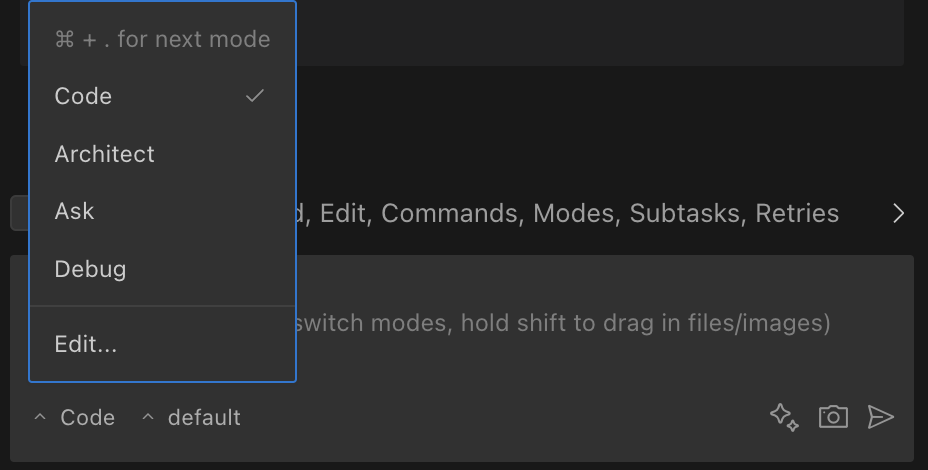
-
Slash Command Navigation: Type
/architect,/ask,/debug, or/codedirectly in the chat input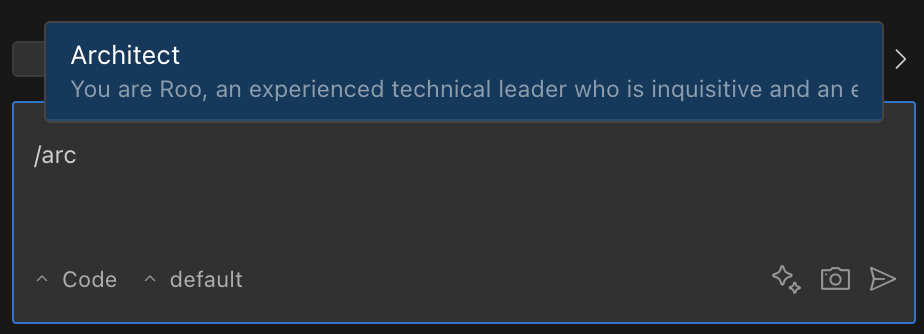
-
Keyboard Shortcut Cycling: Use the platform-specific keyboard combination shown below. Each keystroke cycles sequentially through available modes, returning to the first mode after reaching the end of the sequence.
Operating System Shortcut macOS ⌘ + . Windows Ctrl + . Linux Ctrl + . -
Contextual Suggestions: Accept intelligent mode-switching recommendations that Thunderflow offers at appropriate moments
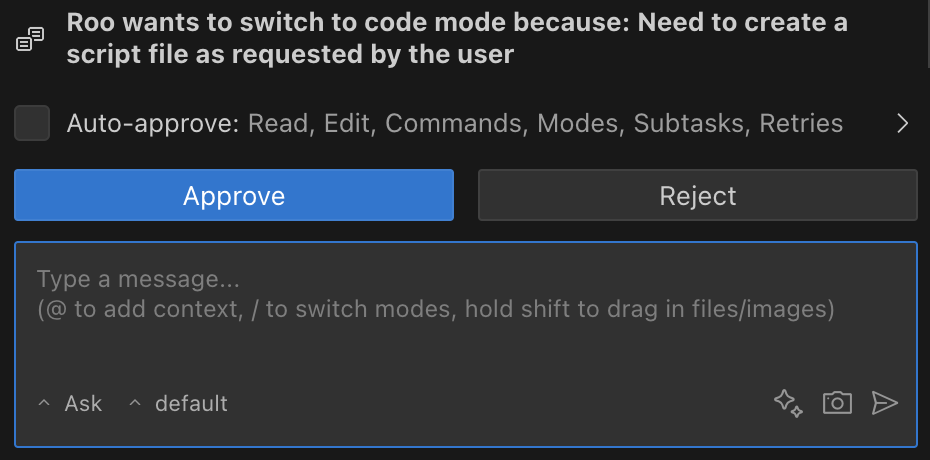
Core Operational Modes
Code Mode (Default)
| Aspect | Details |
|---|---|
| Description | A highly proficient software engineer with comprehensive expertise across programming languages, architectural patterns, and industry best practices |
| Tool Access | Complete access to all tool categories: read, edit, browser, command, mcp |
| Optimal Applications | Developing code, implementing features, resolving bugs, and handling general development tasks |
| Distinctive Capabilities | Unrestricted tool access—providing maximum flexibility for all development requirements |
Ask Mode
| Aspect | Details |
|---|---|
| Description | A deeply knowledgeable technical resource focused on providing information and insights without modifying your codebase |
| Tool Access | Selective access: read, browser, mcp only (cannot modify files or execute commands) |
| Optimal Applications | Code explanation, concept exploration, technical learning, and knowledge acquisition |
| Distinctive Capabilities | Optimized for comprehensive, informative responses while maintaining the integrity of your project |
Architect Mode
| Aspect | Details |
|---|---|
| Description | A seasoned technical strategist and system designer specializing in high-level planning and architectural guidance |
| Tool Access | Strategic access to read, browser, mcp, and restricted edit (limited to markdown files) |
| Optimal Applications | System architecture design, strategic planning, and comprehensive implementation roadmapping |
| Distinctive Capabilities | Employs a methodical approach progressing from information gathering to detailed implementation planning |
Debug Mode
| Aspect | Details |
|---|---|
| Description | An expert diagnostic specialist focusing on systematic problem identification, troubleshooting, and resolution |
| Tool Access | Comprehensive access to all tool categories: read, edit, browser, command, mcp |
| Optimal Applications | Isolating bugs, diagnosing error conditions, and resolving complex technical issues |
| Distinctive Capabilities | Utilizes a structured methodology of analysis, hypothesis testing, and targeted problem resolution |
Custom Mode Configuration
Create personalized, specialized assistants by defining custom tool access permissions, file modification rights, and behavioral parameters. Custom modes help enforce team standards or create purpose-specific AI assistants tailored to your unique requirements. For detailed setup instructions, refer to the Custom Modes documentation.