The Thunderflow AI Chat Interface
The Thunderflow AI chat interface serves as your primary communication channel with the assistant. Access it by clicking the Thunderflow AI icon () in the VS Code Activity Bar, which opens the dedicated Thunderflow AI panel.
Key Components of the Interface
The chat interface features several essential elements designed for intuitive interaction:
-
Chat History: This section displays your complete conversation thread with Thunderflow AI, including your requests, the AI's responses, and a record of all actions performed (such as file modifications or command executions).
-
Input Field: The dedicated area where you formulate and type your tasks and questions for Thunderflow AI. Natural language works perfectly—simply express your needs in plain English.
-
Action Buttons: These context-sensitive controls appear below the input field, allowing you to approve or reject Thunderflow AI's proposed actions. The available options adapt based on the current context.
-
Send Button: Located on the far right of the input field, this paper plane icon transmits your messages to Thunderflow AI after you've composed them.
-
Plus Button: Positioned in the header area, this button resets your current session when you're ready to start fresh.
-
Settings Button: Represented by a gear icon, this control opens the settings panel where you can customize Thunderflow AI's features and behaviors to suit your preferences.
-
Mode Selector: This dropdown menu, situated to the left of the chat input field, allows you to select the specialized mode Thunderflow AI should use when addressing your tasks.
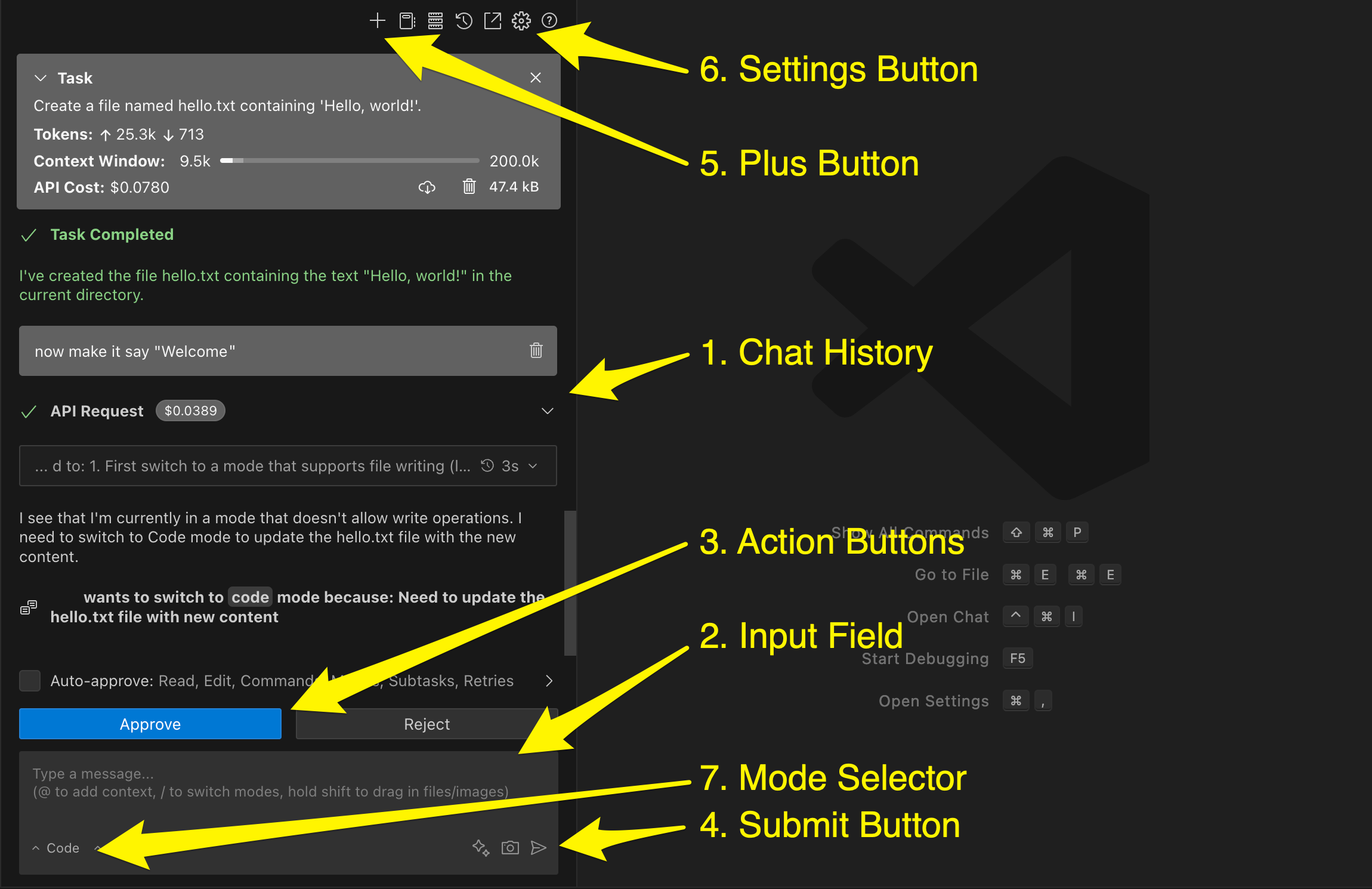
Numbered interface elements highlighting the key components of the Thunderflow AI chat interface.
Interactive Message Features
-
Clickable Elements: File paths, URLs, and other references within the chat history are fully interactive. Clicking a file path opens the corresponding file in your editor, while clicking a URL launches it in your default browser.
-
Text Selection and Copying: You can select and copy text from the chat history using standard copy commands (Ctrl/Cmd + C). Specialized elements like code blocks feature dedicated "Copy" buttons for convenience.
-
Content Management: Click on any message to expand or collapse it, helping you manage screen space and focus on relevant information.
Visual Status Indicators
-
Loading Spinner: A dynamic spinner appears when Thunderflow AI is processing your request, providing visual feedback on ongoing operations.
-
Error Notifications: Red messages clearly indicate when errors occur, helping you quickly identify and address issues.
-
Success Confirmations: Green messages confirm the successful completion of actions, providing clear visual feedback on operations that have been executed correctly.