Using MCP in Thunderflow AI
Model Context Protocol (MCP) extends Thunderflow AI's capabilities by connecting to external tools and services. This guide covers everything you need to know about using MCP with Thunderflow AI.
Configuring MCP Servers
MCP server configurations can be managed at two levels:
- Global Configuration: Stored in the
mcp_settings.jsonfile, accessible via VS Code settings (see below). These settings apply across all your workspaces unless overridden by a project-level configuration. - Project-level Configuration: Defined in a
.thunderflow/mcp.jsonfile within your project's root directory. This allows you to set up project-specific servers and share configurations with your team by committing the file to version control. Thunderflow AI automatically detects and loads this file if it exists.
Precedence: If a server name exists in both global and project configurations, the project-level configuration takes precedence.
Editing MCP Settings Files
You can edit both global and project-level MCP configuration files directly from the Thunderflow AI MCP settings view:
- Click the icon in the top navigation of the Thunderflow AI pane.
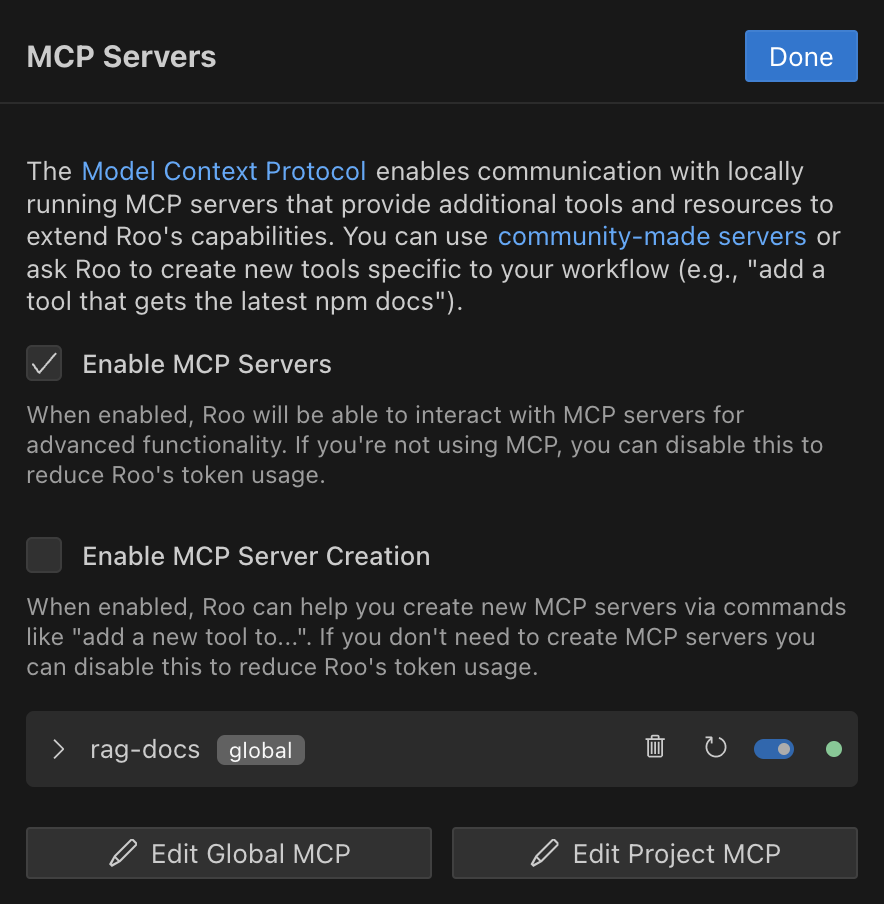
- Scroll to the bottom of the MCP settings view.
- Click the appropriate button:
Edit Global MCP: Opens the globalmcp_settings.jsonfile.Edit Project MCP: Opens the project-specific.thunderflow/mcp.jsonfile. If this file doesn't exist, Thunderflow AI will create it for you.

Both files use a JSON format with a mcpServers object containing named server configurations:
{
  "mcpServers": {
    "server1": {
      "command": "python",
      "args": ["/path/to/server.py"],
      "env": {
        "API_KEY": "your_api_key"
      },
      "alwaysAllow": ["tool1", "tool2"],
      "disabled": false
    }
  }
}
Example of MCP Server config in Thunderflow AI (STDIO Transport)
Understanding Transport Types
MCP supports two transport types for server communication:
STDIO Transport
Used for local servers running on your machine:
- Communicates via standard input/output streams
- Lower latency (no network overhead)
- Better security (no network exposure)
- Simpler setup (no HTTP server needed)
- Runs as a child process on your machine
For more in-depth information about how STDIO transport works, see STDIO Transport.
STDIO configuration parameters:
command(required): The executable to run (e.g.,node,python,npx, or an absolute path).args(optional): An array of string arguments to pass to the command.cwd(optional): The working directory from which to launch the server process. If omitted, defaults to the first workspace folder path or the main process's working directory. Useful if the server script relies on relative paths.env(optional): An object containing environment variables to set for the server process.alwaysAllow(optional): An array of tool names from this server to automatically approve.disabled(optional): Set totrueto disable this server configuration.
STDIO configuration example:
{
  "mcpServers": {
    "local-server": {
      "command": "node",
      "args": ["server.js"],
      "cwd": "/path/to/project/root", // Optional: Specify working directory
      "env": {
        "API_KEY": "your_api_key"
      },
      "alwaysAllow": ["tool1", "tool2"],
      "disabled": false
    }
  }
}
SSE Transport
Used for remote servers accessed over HTTP/HTTPS:
- Communicates via Server-Sent Events protocol
- Can be hosted on a different machine
- Supports multiple client connections
- Requires network access
- Allows centralized deployment and management
For more in-depth information about how SSE transport works, see SSE Transport.
SSE configuration parameters:
url(required): The full URL endpoint of the remote MCP server (e.g.,https://your-server.com/mcp).headers(optional): An object containing custom HTTP headers to send with requests (e.g., for authentication tokens).alwaysAllow(optional): An array of tool names from this server to automatically approve.disabled(optional): Set totrueto disable this server configuration.
SSE configuration example:
{
  "mcpServers": {
    "remote-server": {
      "url": "https://your-server-url.com/mcp",
      "headers": {
        "Authorization": "Bearer your-token" // Example: Authentication header
      },
      "alwaysAllow": ["tool3"],
      "disabled": false
    }
  }
}
Enabling or Disabling MCP Servers
Disabling your MCP Servers here will remove all MCP related logic and definitions from your system prompt, reducing your token usage. This will prevent Thunderflow AI from connecting to any MCP servers, and the use_mcp_tool and access_mcp_resource tools will not be available. Check this off if you don't intend to use MCP Servers. This is on by default.
- Click the icon in the top navigation of the Thunderflow AI pane
- Check/Uncheck
Enable MCP Servers

Enabling or Disabling MCP Server Creation
Disabling your MCP Server Creation here will just remove the instructions from your system prompt that Thunderflow AI uses to write MCP servers while not removing the context related to operating them. This reduces token usage. This is on by default.
- Click the icon in the top navigation of the Thunderflow AI pane
- Check/Uncheck
Enable MCP Server Creation

Managing Individual MCP Servers
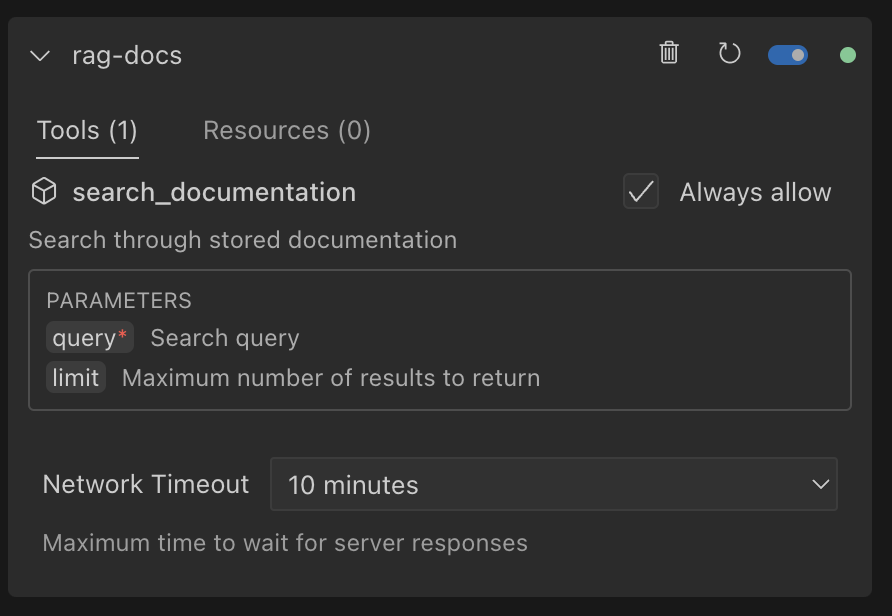
Each MCP server has its own configuration panel where you can modify settings, manage tools, and control its operation. To access these settings:
- Click the icon in the top navigation of the Thunderflow AI pane
- Locate the MCP server you want to manage in the list

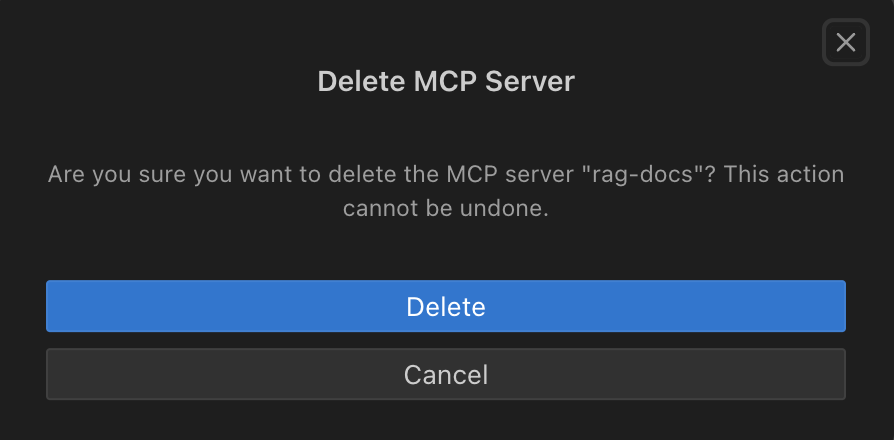
Deleting a Server
- Press the next to the MCP server you would like to delete
- Press the
Deletebutton on the confirmation box
Restarting a Server
- Press the button next to the MCP server you would like to restart
Enabling or Disabling a Server
- Press the toggle switch next to the MCP server to enable/disable it
Network Timeout
To set the maximum time to wait for a response after a tool call to the MCP server:
- Click the
Network Timeoutpulldown at the bottom of the individual MCP server's config box and change the time. Default is 1 minute but it can be set between 30 seconds and 5 minutes.

Auto Approve Tools
MCP tool auto-approval works on a per-tool basis and is disabled by default. To configure auto-approval:
- First enable the global "Use MCP servers" auto-approval option in auto-approving-actions
- In the MCP server settings, locate the specific tool you want to auto-approve
- Check the
Always allowcheckbox next to the tool name

When enabled, Thunderflow AI will automatically approve this specific tool without prompting. Note that the global "Use MCP servers" setting takes precedence - if it's disabled, no MCP tools will be auto-approved.
Finding and Installing MCP Servers
Thunderflow AI does not come with any pre-installed MCP servers. You'll need to find and install them separately.
- Community Repositories: Check for community-maintained lists of MCP servers on GitHub
- Ask Thunderflow: You can ask Thunderflow AI to help you find or even create MCP servers (when "Enable MCP Server Creation" is enabled)
- Build Your Own: Create custom MCP servers using the SDK to extend Thunderflow AI with your own tools
For full SDK documentation, visit the MCP GitHub repository.
Using MCP Tools in Your Workflow
After configuring an MCP server, Thunderflow will automatically detect available tools and resources. To use them:
- Type your request in the Thunderflow AI chat interface
- Thunderflow will identify when an MCP tool can help with your task
- Approve the tool use when prompted (or use auto-approval)
Example: "Analyze the performance of my API" might use an MCP tool that tests API endpoints.
Troubleshooting MCP Servers
Common issues and solutions:
- Server Not Responding: Check if the server process is running and verify network connectivity
- Permission Errors: Ensure proper API keys and credentials are configured in your
mcp_settings.json(for global settings) or.thunderflow/mcp.json(for project settings). - Tool Not Available: Confirm the server is properly implementing the tool and it's not disabled in settings
- Slow Performance: Try adjusting the network timeout value for the specific MCP server
Platform-Specific MCP Configuration Examples
Windows Configuration Example
When setting up MCP servers on Windows, you'll need to use the Windows Command Prompt (cmd) to execute commands. Here's an example of configuring a Puppeteer MCP server on Windows:
{
  "mcpServers": {
    "puppeteer": {
      "command": "cmd",
      "args": [
        "/c",
        "npx",
        "-y",
        "@modelcontextprotocol/server-puppeteer"
      ]
    }
  }
}
This Windows-specific configuration:
- Uses the
cmdcommand to access the Windows Command Prompt - Uses
/cto tell cmd to execute the command and then terminate - Uses
npxto run the package without installing it permanently - The
-yflag automatically answers "yes" to any prompts during installation - Runs the
@modelcontextprotocol/server-puppeteerpackage which provides browser automation capabilities
macOS and Linux Configuration Example
When setting up MCP servers on macOS or Linux, you can use a simpler configuration since you don't need the Windows Command Prompt. Here's an example of configuring a Puppeteer MCP server on macOS or Linux:
{
  "mcpServers": {
    "puppeteer": {
      "command": "npx",
      "args": [
        "-y",
        "@modelcontextprotocol/server-puppeteer"
      ]
    }
  }
}
This configuration:
- Directly uses
npxwithout needing a shell wrapper - Uses the
-yflag to automatically answer "yes" to any prompts during installation - Runs the
@modelcontextprotocol/server-puppeteerpackage which provides browser automation capabilities
The same approach can be used for other MCP servers on Windows, adjusting the package name as needed for different server types.
Runtime Version Manager Configuration
When working with multiple versions of programming languages or runtimes, you may use version managers like asdf or mise (formerly rtx). These tools help manage multiple runtime versions on a single system. Here's how to configure MCP servers to work with these version managers:
mise Configuration Example
mise is a fast, modern runtime version manager that can be used to specify which version of Node.js, Python, or other runtimes to use for your MCP server:
{
  "mcpServers": {
    "mcp-batchit": {
      "command": "mise",
      "args": [
        "x",
        "--",
        "node",
        "/Users/myself/workspace/mcp-batchit/build/index.js"
      ],
      "disabled": false,
      "alwaysAllow": [
        "search",
        "batch_execute"
      ]
    }
  }
}
This configuration:
- Uses the
misecommand to manage runtime versions - The
xsubcommand executes a command with the configured runtime version - The
--separates mise arguments from the command to run - Runs
nodewith the specific version configured in your mise settings - Points to the MCP server JavaScript file
- Automatically allows the "search" and "batch_execute" tools
asdf Configuration Example
asdf is a popular tool for managing multiple runtime versions. Here's how to configure an MCP server to use a specific Node.js version managed by asdf:
{
  "mcpServers": {
    "appsignal": {
      "command": "/Users/myself/.asdf/installs/nodejs/22.2.0/bin/node",
      "args": [
        "/Users/myself/Code/Personal/my-mcp/build/index.js"
      ],
      "env": {
        "ASDF_NODE_VERSION": "22.2.0"
      },
      "disabled": false,
      "alwaysAllow": []
    }
  }
}
This configuration:
- Directly references the Node.js executable from the asdf installations directory
- Sets the
ASDF_NODE_VERSIONenvironment variable to ensure consistent version use - Points to the MCP server JavaScript file
Using version managers ensures that your MCP servers run with the correct runtime version, regardless of the system's default version, providing consistency across different environments and preventing version conflicts.