Terminal Shell Integration
Terminal Shell Integration is a key feature that enables Thunderflow AI to execute commands in your terminal and intelligently process their output. This bidirectional communication between the AI and your development environment unlocks powerful automation capabilities.
What is Shell Integration?
Shell integration is automatically enabled in Thunderflow AI and connects directly to your terminal's command execution lifecycle without requiring any setup from you. This built-in feature allows Thunderflow to:
- Execute commands on your behalf through the
execute_commandtool - Read command output in real-time without manual copy-pasting
- Automatically detect and fix errors in running applications
- Observe command exit codes to determine success or failure
- Track working directory changes as you navigate your project
- React intelligently to terminal output without user intervention
When you ask Thunderflow to perform tasks like installing dependencies, starting a development server, or analyzing build errors, shell integration works behind the scenes to make these interactions smooth and effective.
Troubleshooting Shell Integration
Shell integration is built into Thunderflow AI and works automatically in most cases. If you see "Shell Integration Unavailable" messages or experience issues with command execution, try these solutions:
- Update VSCode/Cursor to the latest version (VSCode 1.93+ required)
- Ensure a compatible shell is selected: Command Palette (
Ctrl+Shift+PorCmd+Shift+P) → "Terminal: Select Default Profile" → Choose bash, zsh, PowerShell, or fish - Windows PowerShell users: Run
Set-ExecutionPolicy RemoteSigned -Scope CurrentUserthen restart VSCode - WSL users: Add
. "$(code --locate-shell-integration-path bash)"to your~/.bashrc
Terminal Integration Settings
Thunderflow AI provides several settings to fine-tune shell integration. Access these in the Thunderflow AI sidebar under Settings → Terminal.
Basic Settings
Terminal Output Limit

Controls the maximum number of lines captured from terminal output. When exceeded, it keeps 20% of the beginning and 80% of the end with a truncation message in between. This prevents excessive token usage while maintaining context. Default: 500 lines. Controls the maximum number of lines captured from terminal output. When exceeded, lines are removed from the middle to save tokens. Default: 500 lines.
Terminal Shell Integration Timeout
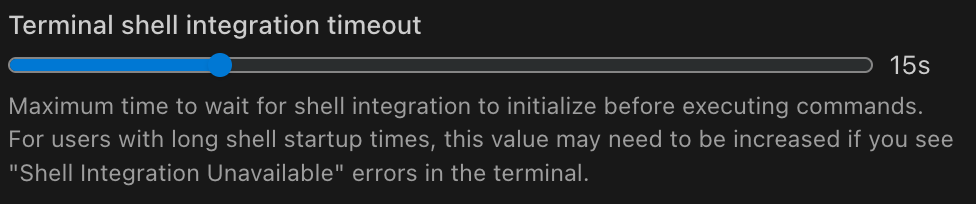
Maximum time to wait for shell integration to initialize before executing commands. Increase this value if you experience "Shell Integration Unavailable" errors. Default: 15 seconds.
Terminal Command Delay
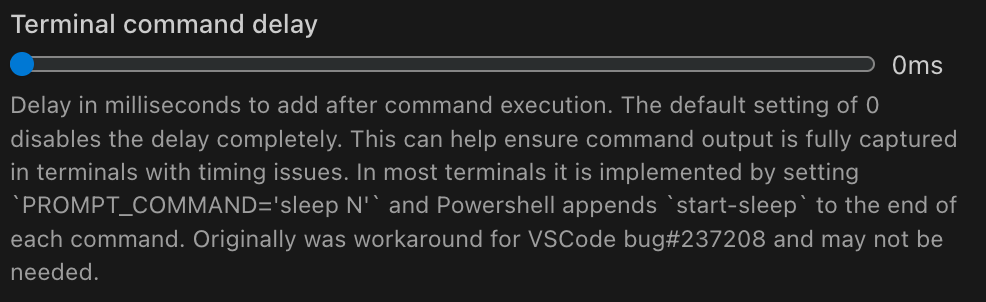
Adds a small pause after running commands to help Thunderflow capture all output correctly. This setting can significantly impact shell integration reliability due to VSCode's implementation of terminal integration across different operating systems and shell configurations:
- Default: 0ms (as of Thunderflow v3.11.13)
- Common Values:
- 0ms: Works best for some users with newer VSCode versions
- 50ms: Historical default, still effective for many users
- 150ms: Recommended for PowerShell users
- Note: Different values may work better depending on your:
- VSCode version
- Shell customizations (oh-my-zsh, powerlevel10k, etc.)
- Operating system and environment
Advanced Settings
Terminal restart required for these settings
Changes to advanced terminal settings only take effect after restarting your terminals. To restart a terminal:
- Click the trash icon in the terminal panel to close the current terminal
- Open a new terminal with Terminal → New Terminal or Ctrl+` (backtick)
Always restart all open terminals after changing any of these settings.
PowerShell Counter Workaround

Helps PowerShell run the same command multiple times in a row. Enable this if you notice Thunderflow can't run identical commands consecutively in PowerShell.
Clear ZSH EOL Mark

Prevents ZSH from adding special characters at the end of output lines that can confuse Thunderflow when reading terminal results.
Oh My Zsh Integration

Makes Thunderflow work better with the popular Oh My Zsh shell customization framework. Turn this on if you use Oh My Zsh and experience terminal issues.
Powerlevel10k Integration

Improves compatibility if you use the Powerlevel10k theme for ZSH. Turn this on if your fancy terminal prompt causes issues with Thunderflow.
ZDOTDIR Handling

Helps Thunderflow work with custom ZSH configurations without interfering with your personal shell settings and customizations.
How Shell Integration Works
Shell integration connects Thunderflow to your terminal's command execution process in real-time:
-
Connection: When you open a terminal, VS Code establishes a special connection with your shell.
-
Command Tracking: VS Code monitors your terminal activities by detecting:
- When a new prompt appears
- When you enter a command
- When the command starts running
- When the command finishes (and whether it succeeded or failed)
- What directory you're currently in
-
Different Shells, Same Result: Each shell type (Bash, Zsh, PowerShell, Fish) implements this slightly differently behind the scenes, but they all provide the same functionality to Thunderflow.
-
Information Gathering: Thunderflow can see what commands are running, where they're running, how long they take, whether they succeed, and their complete output - all without you having to copy and paste anything.
Troubleshooting Shell Integration
PowerShell Execution Policy (Windows)
PowerShell restricts script execution by default. To configure:
- Open PowerShell as Administrator
- Check current policy:
Get-ExecutionPolicy - Set appropriate policy:
Set-ExecutionPolicy RemoteSigned -Scope CurrentUser
Common policies:
Restricted: No scripts allowed (default)RemoteSigned: Local scripts can run; downloaded scripts need signingUnrestricted: All scripts run with warningsAllSigned: All scripts must be signed
Manual Shell Integration Installation
If automatic integration fails, add the appropriate line to your shell configuration:
Bash (~/.bashrc):
[[ "$TERM_PROGRAM" == "vscode" ]] && . "$(code --locate-shell-integration-path bash)"
Zsh (~/.zshrc):
[[ "$TERM_PROGRAM" == "vscode" ]] && . "$(code --locate-shell-integration-path zsh)"
PowerShell ($Profile):
if ($env:TERM_PROGRAM -eq "vscode") { . "$(code --locate-shell-integration-path pwsh)" }
Fish (~/.config/fish/config.fish):
string match -q "$TERM_PROGRAM" "vscode"; and . (code --locate-shell-integration-path fish)
Terminal Customization Issues
If you use terminal customization tools:
Powerlevel10k:
# Add before sourcing powerlevel10k in ~/.zshrc
typeset -g POWERLEVEL9K_TERM_SHELL_INTEGRATION=true
Alternative: Enable the Powerlevel10k Integration setting in Thunderflow AI.
Verifying Shell Integration Status
Confirm shell integration is active with these commands:
Bash:
set | grep -i '[16]33;'
echo "$PROMPT_COMMAND" | grep vsc
trap -p DEBUG | grep vsc
Zsh:
functions | grep -i vsc
typeset -p precmd_functions preexec_functions
PowerShell:
Get-Command -Name "*VSC*" -CommandType Function
Get-Content Function:\Prompt | Select-String "VSCode"
Fish:
functions | grep -i vsc
functions fish_prompt | grep -i vsc
Visual indicators of active shell integration:
- Shell integration indicator in terminal title bar
- Command detection highlighting
- Working directory updates in terminal title
- Command duration and exit code reporting
WSL Terminal Integration Methods
When using Windows Subsystem for Linux (WSL), there are two distinct ways to use VSCode with WSL, each with different implications for shell integration:
Method 1: VSCode Windows with WSL Terminal
In this setup:
- VSCode runs natively in Windows
- You use the WSL terminal integration feature in VSCode
- Shell commands are executed through the WSL bridge
- May experience additional latency due to Windows-WSL communication
- Shell integration markers may be affected by the WSL-Windows boundary: you must make sure that
source "$(code --locate-shell-integration-path <shell>)"is loaded for your shell within the WSL environment because it may not get automatically loaded; see above.
Method 2: VSCode Running Within WSL
In this setup:
- You launch VSCode directly from within WSL using
code . - VSCode server runs natively in the Linux environment
- Direct access to Linux filesystem and tools
- Better performance and reliability for shell integration
- Shell integration is loaded automatically since VSCode runs natively in the Linux environment
- Recommended approach for WSL development
For optimal shell integration with WSL, we recommend:
- Open your WSL distribution
- Navigate to your project directory
- Launch VSCode using
code . - Use the integrated terminal within VSCode
Known Issues and Workarounds
Shell Integration Failures After VSCode 1.98
Issue: After VSCode updates beyond version 1.98, shell integration may fail with the error "VSCE output start escape sequence (]633;C or ]133;C) not received".
Solutions:
-
Set Terminal Command Delay:
- Set the Terminal Command Delay to 50ms in Thunderflow AI settings
- Restart all terminals after changing this setting
- This matches older default behavior and may resolve the issue, however some users have reported that a value of 0ms works better. This is a workaround for upstream VSCode problems.
-
Roll Back VSCode Version:
- Download VSCode v1.98 from VSCode Updates
- Replace your current VSCode installation
- No backup of Thunderflow settings needed
-
WSL-Specific Workaround:
- If using WSL, ensure you launch VSCode from within WSL using
code .
- If using WSL, ensure you launch VSCode from within WSL using
-
ZSH Users:
- Try enabling some or all ZSH-related workarounds in Thunderflow settings
- These settings can help regardless of your operating system
Known Issues and Workarounds
Ctrl+C Behavior
Issue: If text is already typed in the terminal when Thunderflow tries to run a command, Thunderflow will press Ctrl+C first to clear the line, which can interrupt running processes.
Workaround: Make sure your terminal prompt is empty (no partial commands typed) before asking Thunderflow to execute terminal commands.
Multi-line Command Issues
Issue: Commands that span multiple lines can confuse Thunderflow and may show output from previous commands mixed in with current output.
Workaround: Instead of multi-line commands, use command chaining with && to keep everything on one line (e.g., echo a && echo b instead of typing each command on a separate line).
PowerShell-Specific Issues
- Premature Completion: PowerShell sometimes tells Thunderflow a command is finished before all the output has been shown.
- Repeated Commands: PowerShell may refuse to run the same command twice in a row.
Workaround: Enable the "PowerShell counter workaround" setting and set a terminal command delay of 150ms in the settings to give commands more time to complete.
Incomplete Terminal Output
Issue: Sometimes VS Code doesn't show or capture all the output from a command.
Workaround: If you notice missing output, try closing and reopening the terminal tab, then run the command again. This refreshes the terminal connection.
Troubleshooting Resources
Checking Debug Logs
When shell integration issues occur, check the debug logs:
- Open Help → Toggle Developer Tools → Console
- Set "Show All Levels" to see all log messages
- Look for messages containing
[Terminal Process] - Check
preOutputcontent in error messages:- Empty preOutput (
'') means VSCode sent no data - This indicates a potential VSCode shell integration issue, or an upstream bug that is out of our control
- The absence of shell integration markers may require adjusting settings to work around possible upstream bugs or local workstation configuration issues related to shell initialization and VSCode's loading of special shell integration hooks
- Empty preOutput (
Using the VSCode Terminal Integration Test Extension
The VSCode Terminal Integration Test Extension helps diagnose shell integration issues by testing different settings combinations:
-
When Commands Stall:
- If you see "command already running" warnings, click "Reset Stats" to reset the terminal state
- These warnings indicate shell integration is not working
- Try different settings combinations until you find one that works
- If it really gets stuck, restart the extension by closing the window and pressing F5
-
Testing Settings:
- Systematically try different combinations of:
- Terminal Command Delay
- Shell Integration settings
- Document which combinations succeed or fail
- This helps identify patterns in shell integration issues
- Systematically try different combinations of:
-
Reporting Issues:
- Once you find a problematic configuration
- Document the exact settings combination
- Note your environment (OS, VSCode version, shell, and any shell prompt customization)
- Open an issue with these details to help improve shell integration
Support
If you're still having issues contact support@thunderflow.ai